Introduction
Sometimes it is necessary to run a program on user logon. In this tip, I will show you how to run a C# program automatically in user logon.
Using the code
First, we need to know the location of the
Startup folder. To do that, we use this code:
string startupFolder = Environment.GetFolderPath(Environment.SpecialFolder.Startup);
Now, we need to create the shortcut. To do that, we need to add a reference to the Windows ScriptHost Object Model. If you use Visual C#, you can see on this pictures how to add the reference:
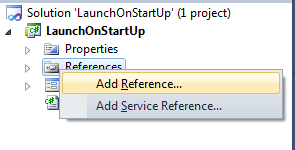
And then, choose the
Windows Script Host Object Model in the tabpage 'COM':
Now, add this
using namespace statement at the top of your code file:using IWshRuntimeLibrary;
Then, create the shortcut:
WshShell shell = new WshShell();
string shortcutAddress = startupFolder + @"\MyStartupShortcut.lnk";
IWshShortcut shortcut = (IWshShortcut)shell.CreateShortcut(shortcutAddress);
shortcut.Description = "A startup shortcut. If you delete this shortcut from your computer, LaunchOnStartup.exe will not launch on Windows Startup"; // set the description of the shortcut
shortcut.WorkingDirectory = Application.StartupPath; /* working directory */
shortcut.TargetPath = Application.ExecutablePath; /* path of the executable */
shortcut.Save(); // save the shortcut
Optionally, you can set the arguments of the shortcut:
shortcut.Arguments = "/a /c";
Do that before you save the shortcut. Setting the arguments is not required; do it only if your program needs that.
But don't use a name such as "MyStartupShortcut.lnk", because there is a risk that other programs use that name, and that you overwrite that shortcut. Create a shortcut name such as "Clock.lnk" if you've a clock application, or "TcpServer.lnk" if you've a TCP/IP application.

No comments:
Post a Comment
Comment Here..